

Unlock PDF
Unlock a password-protected PDF when you know its open password, or remove printing and copying permissions from a file that already opens. The PDF and password stay in your browser. Download one unlocked copy or process several files as a batch.
100% private. Your files are processed entirely in your browser and never uploaded.
Why unlock a PDF with frisqoo
Local processing
The PDF and any password stay in the browser. No unlock server receives either one.
Protection check
The file is inspected first, so the password field appears only when an open password is required.
Known passwords
Enter the password that opens the PDF. The field is masked and includes a Show control.
Reader permissions
Printing and copying limits can be removed from a PDF that already opens without a password.
Batch mode
Use one password for several files or provide a different password for each file.
Clear downloads
Download each unlocked PDF separately or collect batch results in one ZIP file.
How to unlock a PDF file
- Choose one or more PDF files, or drop them onto the box above.
- Enter the open password when the file asks for it. Leave the field blank for a batch item that opens without one.
- Select Unlock PDF, then save the unlocked PDF or download the batch as a ZIP.
Unlock PDF removes a password you already know. Use Recover PDF Password when you have forgotten a weak or known-format password.
Start with one or more PDF files
Choose a single PDF for the editor flow. The tool reads the local file, checks its encryption state, and opens a workspace beside the first-page preview. Two or more files stay on the page and open the batch form instead.
The input accepts PDFs only. Your original file is not overwritten. Every successful job creates a separate copy whose name ends in -unlocked.pdf, so the protected source and the readable result remain easy to tell apart.
No account is required before the tool can inspect the file. The file chooser hands the browser a local file for the current task; it does not start an upload.

Two kinds of PDF protection
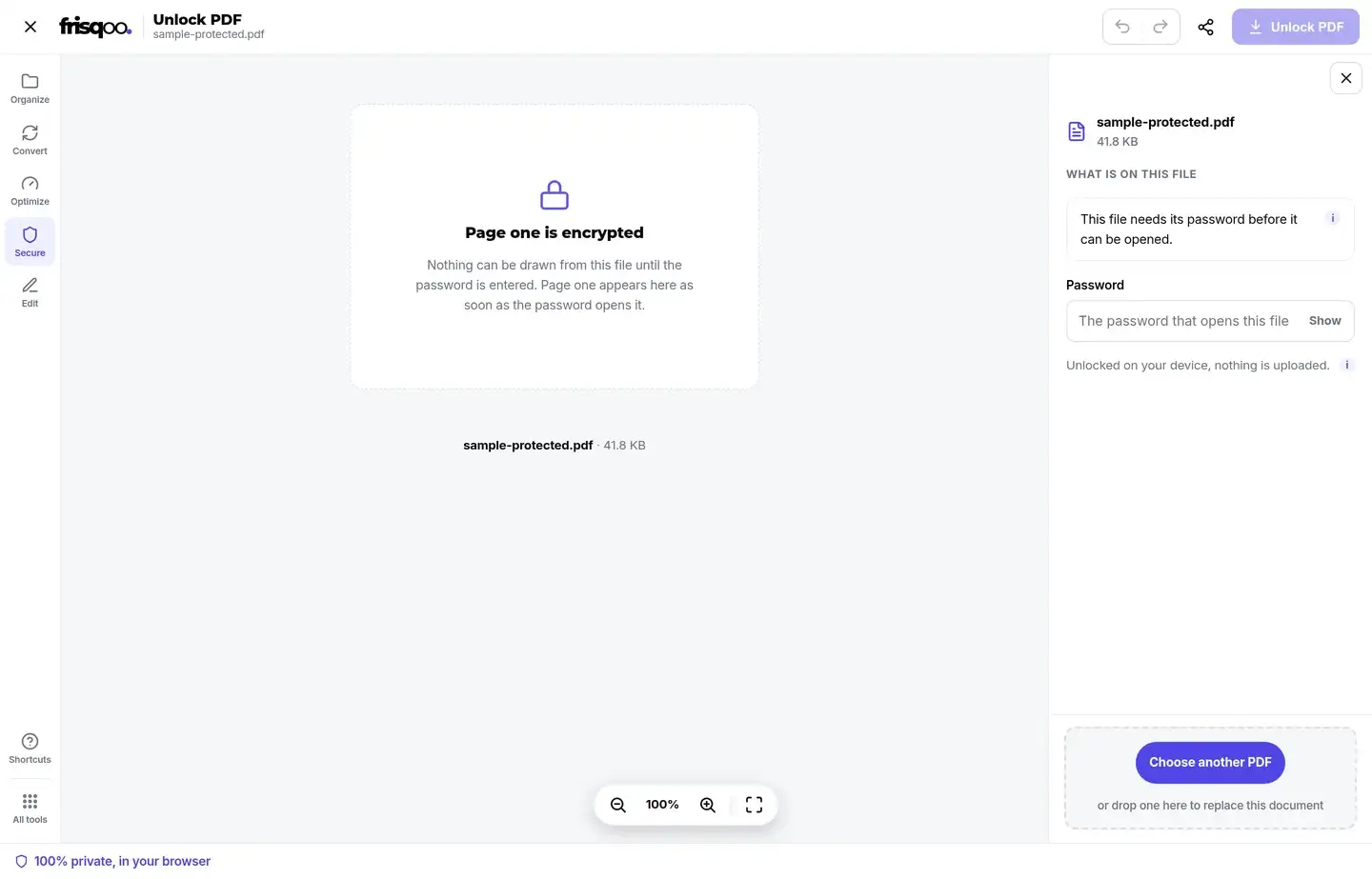
An open password encrypts the document. The PDF reader cannot draw page one until the correct password is supplied. In this state, the workspace shows Page one is encrypted and asks for the password that opens the file.
Reader permissions are different. The PDF already opens, but its settings may tell compatible readers to block printing or copying. The tool can remove those permission flags without asking for a password because the document content is already readable.
A file may also have no encryption and no restrictions. In that case, the panel says there is nothing to remove and offers Save a copy. The result is labelled honestly rather than claiming that an unlocked state was created.
The first inspection controls the action label. A locked file gets Unlock PDF, a permission-only file gets Remove the limits, and a plain file gets Save a copy.
How do I remove a known PDF password?
Enter the password in the side panel and select Unlock PDF. The input is masked by default; select Show when you need to check capitalization or a long value before running the job.
The preview provides an early check. When the typed password can open the document, page one appears in the centre of the editor. If more characters are added and the new value no longer works, the preview returns to the encrypted placeholder.
The tool sends only the accepted password to its local decryption step. A wrong value produces The password was not accepted and leaves the panel available for another attempt. It does not upload the file for remote testing.
What happens after the PDF is unlocked?
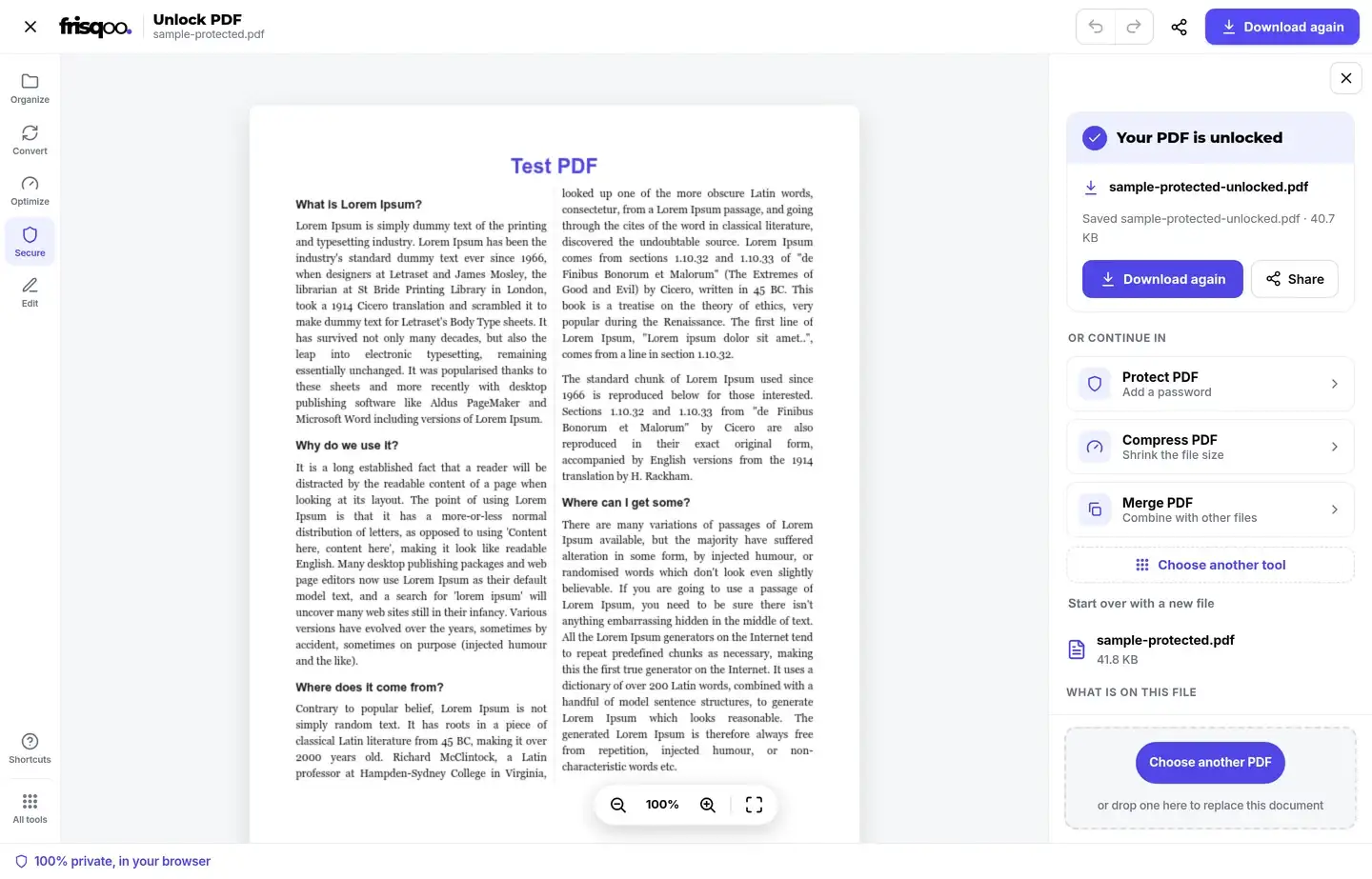
A successful job creates a decrypted copy and starts its download. The completion card says Your PDF is unlocked, shows the saved filename, and provides Download again without repeating the decryption work.
The filename keeps the source name and adds -unlocked. A file named sample-protected.pdf becomes sample-protected-unlocked.pdf. The original remains where it was and still requires its password.
Page one is rendered from the unlocked copy in the completed view. The output can then be sent to Protect PDF, Compress PDF, or Merge PDF from the suggested actions.
When can I unlock a PDF without a password?
You can unlock a PDF without a password when it already opens and carries only printing or copying permissions. Those settings are not an open password, so the content does not need to be decrypted before it can be read.
The tool tests for that state before showing any password field. If the restriction-only decrypt succeeds, the panel explains what it found and the main button reads Remove the limits. The saved copy opens normally and no longer carries those permission flags.
A file that displays an encrypted-page message is different. It needs the open password. The phrase “unlock PDF without password” does not apply to encrypted content, and this page does not guess or recover the missing value.
Unlock several PDF files in one batch
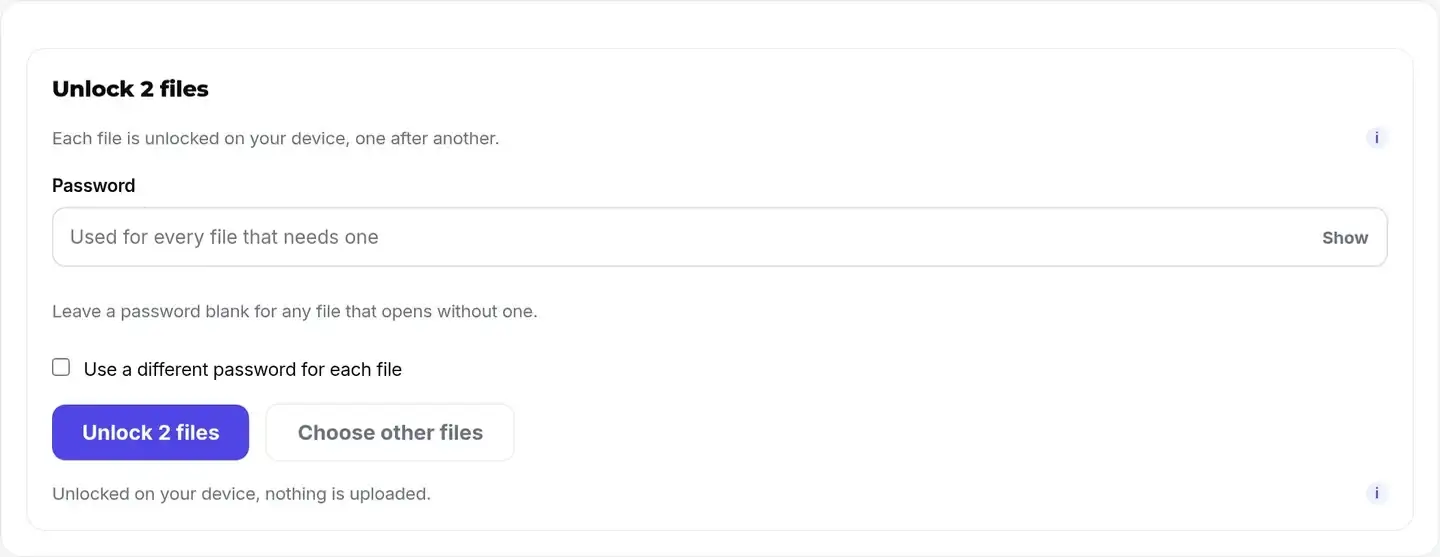
Add two or more PDFs to open batch mode. The default form provides one shared password for every file that needs one. It suits a set of statements or reports created with the same open password.
Leave the shared password blank when every file already opens and only permission flags need removal. For a mixed group, enable Use a different password for each file. Each row then gets its own masked password field, and a blank value remains valid for a file that opens without one.
The batch runs each PDF on your device, one after another. A bad password affects its own file instead of changing the source documents. Use Choose other files to reset the selection before processing.
Download batch results separately or as a ZIP
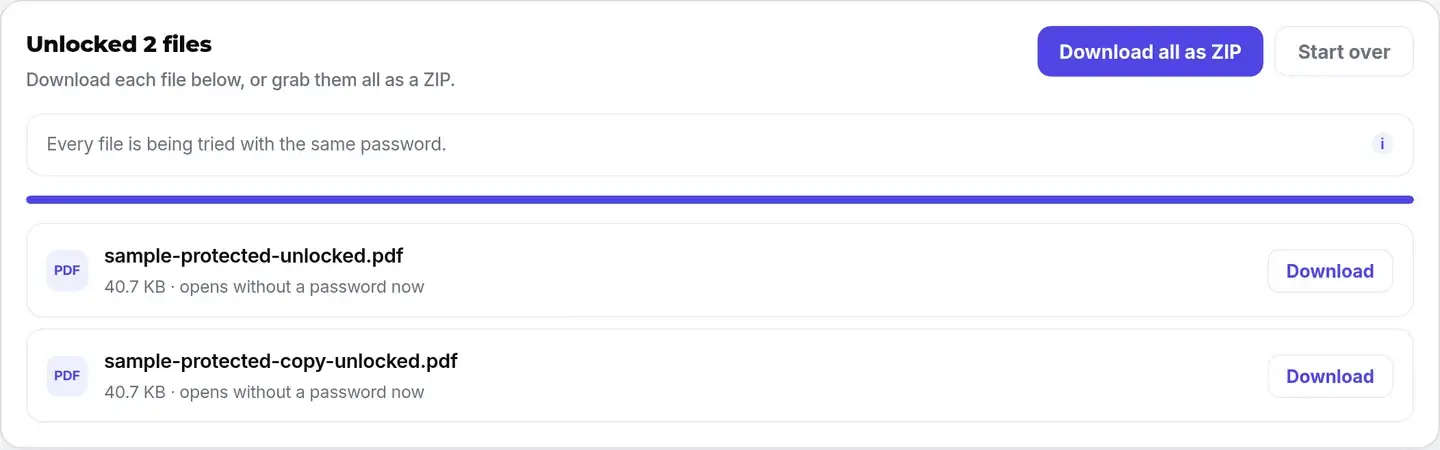
The results screen lists the output filename, size, and outcome for each PDF. A password-protected success says that the copy opens without a password now. A permission-only success states that printing and copying limits were removed.
Select Download on one row to save only that PDF. Select Download all as ZIP to collect the completed files in frisqoo_unlocked.zip. The ZIP changes the packaging only; each item inside remains a PDF.
Start over clears the batch result and returns to file selection. It does not change the original PDFs stored on your device.
What stays in the unlocked copy?
Unlocking decrypts the PDF instead of rasterising each page. The verified result opens as a PDF and keeps selectable text in the sample document. Page order, page size, and visible content remain available in the output.
The security state changes. An open password is removed from a successfully decrypted file, and reader permission flags are removed from a restriction-only file. Anyone who receives the unlocked copy may be able to open, print, or copy from it, so store it with the same care as the password.
The original file is untouched. Keep it when you need the protected version for an archive, or delete the unlocked copy after the immediate task if it contains sensitive information.
PDF features can vary by producer, so review the downloaded copy before relying on it. Open several pages, test the text or printing action you needed, and check any forms, links, bookmarks, or signatures that matter to your workflow. Keep the protected source until those checks are complete.
Why can a readable PDF be refused?
A PDF can open in a reader yet fail when another program tries to rewrite its internal structure. The engine reports This PDF was turned down by the engine rather than creating a result that may look unlocked but cannot be read.
The tool identifies a damaged cross-reference table as a common cause. Try Repair PDF on a file you are entitled to use, then add the repaired copy here again. Password failure and structural damage are separate problems, so changing the password will not repair a broken index.
No alternative rebuild is attempted on encrypted bytes. Writing a replacement without correctly decrypting the content streams could produce an unusable file, so a clear refusal is safer than a misleading download.
Is it safe to unlock a PDF online?
Unlocking is private here because the file and password remain in the browser. Inspection, preview, decryption, and output preparation happen on your device. No remote unlock service receives the protected document together with its password.
Local processing matters for statements, tax documents, contracts, and reports. An unlocked copy no longer has the same access barrier, so the download itself needs careful handling even though the conversion stayed local.
Use the tool only for a PDF you own or are allowed to modify. Knowing a password does not replace permission from the document owner, employer, bank, or sender.
After downloading, check the new file in the reader you normally use. Confirm that the expected pages open, text can be selected where it was selectable before, and any printing or copying task you needed now works. Verification takes little time and catches a damaged source file before the protected original is archived or removed.
Unlocking, recovery, and protection are different
Unlock PDF removes a known open password or reader permissions. Recover PDF Password tests weak or common candidates and supported document patterns when the password has been forgotten. Protect PDF adds a new password.
Choose the path that matches the current file. Use unlock when the password is known, recovery when a likely password must be found, and protect when the readable PDF needs a new lock.
A strong unknown password cannot be removed merely by calling the job decryption. The correct key is still required before encrypted content can be read and saved without the password.
FAQs about Unlock PDF
How do I remove a password from a PDF?
Add the PDF, enter the password that opens it, and select Unlock PDF. The tool decrypts a copy in your browser and downloads it with -unlocked added to the filename.
Can I unlock a PDF without its password?
Only when the PDF opens normally and carries reader permissions such as blocked printing or copying. A PDF protected by an open password still needs the correct password.
Can this recover a forgotten PDF password?
No. Unlock PDF removes a password you know. Use Recover PDF Password to test weak or common passwords and supported document patterns. A strong unknown password cannot be removed by this page.
Does the PDF get uploaded?
No. Inspection, password use, decryption, preview, and download preparation happen in the browser. The file and password are not sent to an unlock server.
What happens to printing and copying restrictions?
A PDF that opens without a password may still contain permission flags. The tool identifies that state and changes the main action to Remove the limits. No password field is shown.
Will unlocking change my pages?
The tool decrypts the PDF rather than turning its pages into images. The verified output keeps readable pages and selectable text, and the original locked file remains unchanged.
What is the unlocked filename?
The output keeps the original base name and adds -unlocked.pdf. For example, report.pdf becomes report-unlocked.pdf.
Can I unlock several PDF files together?
Yes. Add two or more files to open batch mode. Use one password for the set or enable a separate password field for each file.
How do batch downloads work?
Each completed row has its own Download button. Download all as ZIP packages the finished files together in frisqoo_unlocked.zip.
Why was my password rejected?
The entered value did not decrypt that file. Check capitalization, spaces, keyboard layout, and whether the sender gave you an open password rather than an owner password.
Why could the PDF not be rewritten?
A file can open yet contain damaged internal structure. The tool reports that refusal instead of saving an unreadable result. Repair PDF is the relevant next check.
Can I protect the unlocked copy again?
Yes. Open the downloaded copy in Protect PDF to add a new password and optional printing or copying permissions.